
Sign in an account
Before a bot can do anything, it has to sign in to Steam. You only do this once. Steam remembers the sign-in, and you only sign in again if Steam ever signs the account out (for example after a password change).
Open Sign In in the menu. A bot that needs it also shows Sign-in needed: click to sign in on its card on the Bots page; clicking it brings you here.
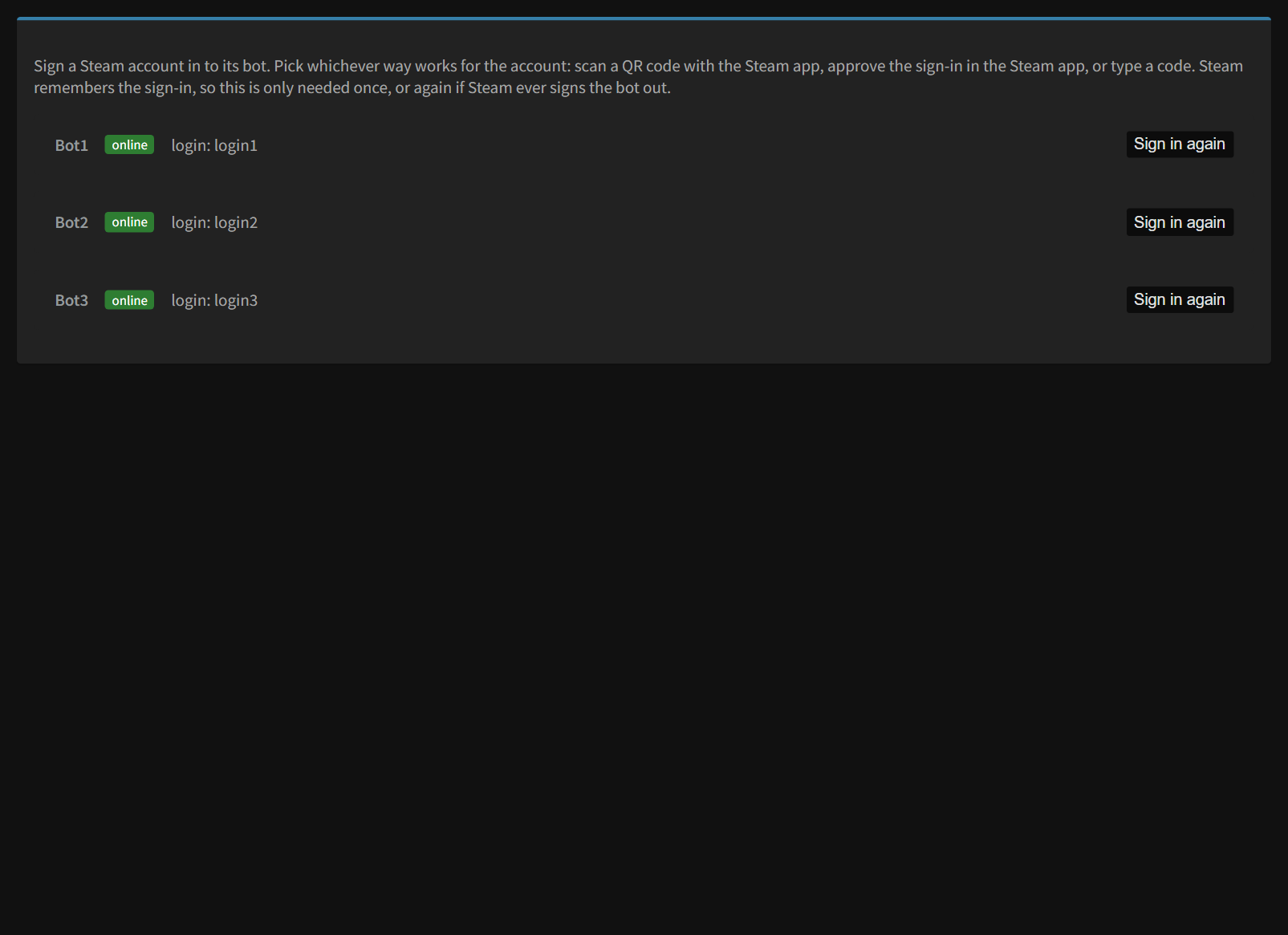
Click Sign in next to the bot and pick the way that works for you:
Scan a QR code (no password needed)
- Click Scan a QR code. A QR code appears. It refreshes by itself.
- On the phone that's signed in to this Steam account, open the Steam app, tap the Steam Guard shield, then Scan a QR code.
- Point the phone at the code and approve.
This is the only way that works without a saved password.
Approve in the Steam app
Needs the account's login and password saved in the bot.
- Click Approve in the Steam app.
- The Steam app on your phone shows a sign-in request named NoggenFogger. Tap Approve.
- Can't approve? Type the code shown in the Steam app into the box instead and click Send.
Type a code
Needs the account's login and password saved in the bot.
- Click Type a code.
- Type the code from the Steam app, or the code Steam emails you (accounts without the Steam app), and click Send.
Good to know
- While it's signing in (up to 5 minutes), the bot is stopped. If you cancel or it fails, the bot goes back to how it was.
- Codes are 5 to 8 letters or numbers.
- A sign-in that isn't finished within 5 minutes stops by itself. Just start again.
- If Steam says the password is wrong, use Scan a QR code, or fix the password in the bot's settings.
- If Steam says there were too many attempts, wait an hour before trying again.
- If the saved login was an email address, it's replaced with the account name after signing in. That's what Steam needs to keep you signed in.
Still stuck? Open a ticket in your private Discord channel, or email admin at noggenfogger dot com.